Before you start working on this, please make sure you have a latest spreadsheet that includes updated deal items. You can find demo spreadsheet here.
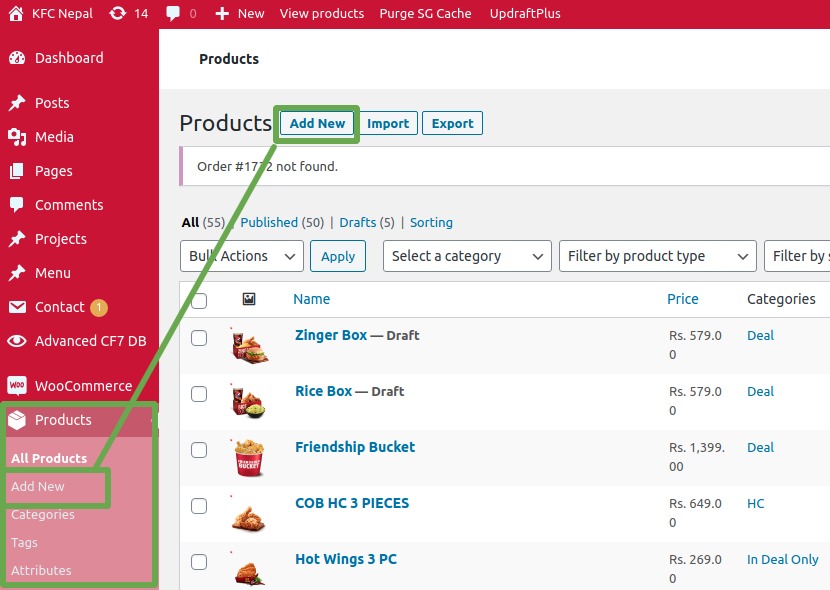
Once you’re logged in, you’ll see a menu All products at the left sidebar menu.
1. All products > Add new
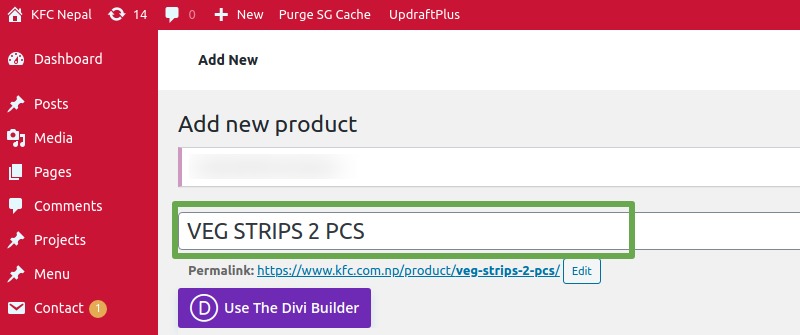
2. Add product name.
It’s recommended to avoid the special characters in the name.
Once you have the name ready, permalink(URL) will be automatically generated. If you wish to change it, you may do so by clicking the Edit button right beside it.
3. Select category
Choose Deal category from the right sidebar by checking a box for an existing option.
If deal is for Wednesday only, select category Wednesday Offer as well.
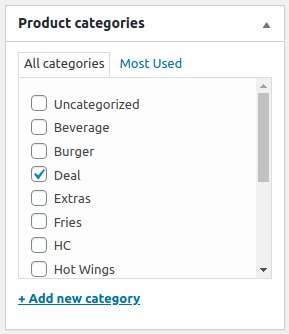
PS: Don’t create random categories like Friday Offer, Monday Offer. Wednesday Offers are programmed to appear in the shop page on Wednesday only. Just creating the category doesn’t inherit this feature.
4. Product data option
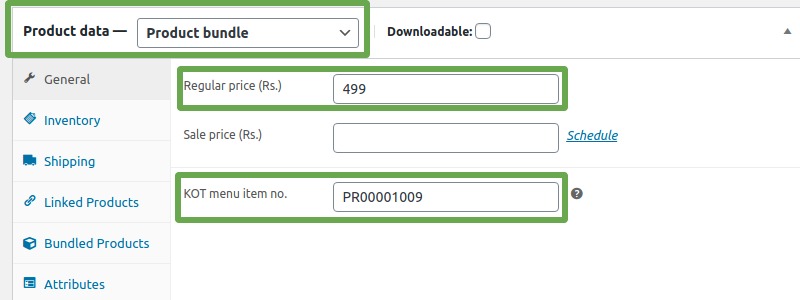
Make sure product data is – Product bundle
5. Add regular price
Refer to the spreadsheet provided by the client for the value.
6. Add KOT menu item no.
Refer to the spreadsheet provided by the client for the value.
Eg. PR00001009
7. Add items to deal
Based on the spreadsheet provided by the client, you should link different number of products to a deal. To do so:
Bundled Products > Add product
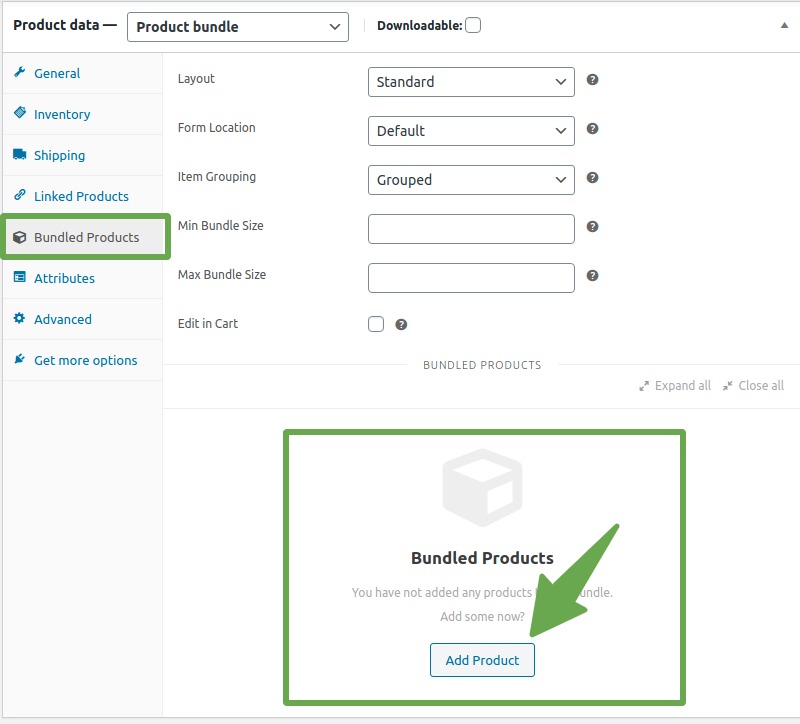
- Search product
- Type in initials
- Select from the list of drop down.
- Set min/max/default to the same number. Quantity is specified on the spreadsheet.
For example: If an item quantity is 2 in a deal, set 2 for min, max and default. Item quantity of a deal is not customizable.
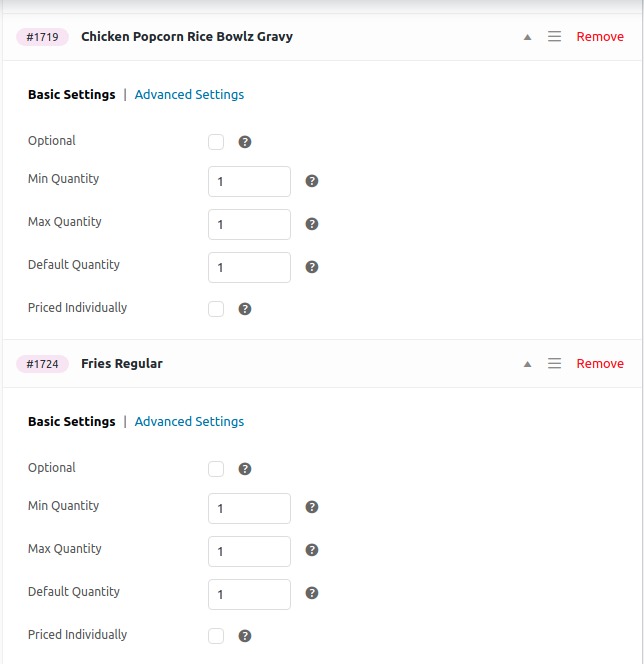
- Keep in repeating this process as required to include all items.
- You can drag and drop products to reorder if need be
8. Set available outlets
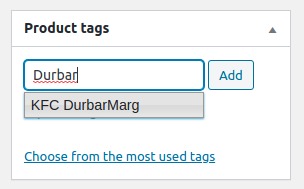
This is where you control outlets where this product is available for order placement.
In Product tags section, type initials of the outlet name. Choose one from the list of auto suggestions from the drop down.
Do not type store name completely at all.
9. Add product image
Add a featured image for the product that’ll be displayed in the shop page.
You can either choose an existing image from the gallery or upload a new one with following specifications.
- Type: png or jpg with white background
- Dimension: 345px X 345px
- Size: not more than 100kb
10. Publish
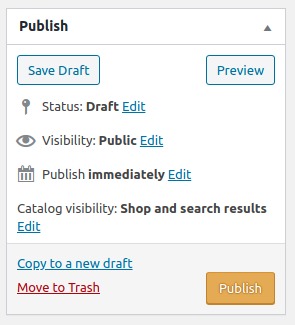
You can now publish or save the product as per required. The control is available in this section.