- Make Icon ready
- SVG format
- color: #666666
- go to icomoon.io and from the right side click on icomoon app
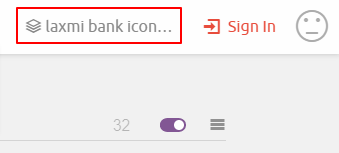
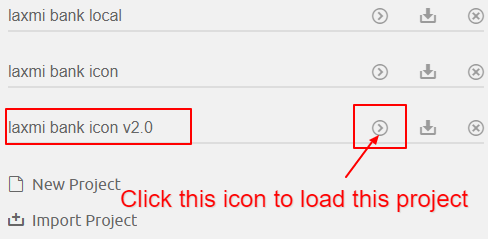
- On the top right side, click on the Laxmi bank icon… it will give a list of projects select Laxmi bank icon v2.0
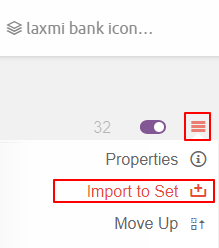
- After the project load, on the right side you can find a burger menu icon. Click on the icon and select Import to set from the dropdown and select icon from you computer.
5.
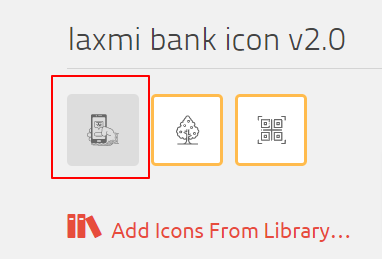
6. after selecting icon it will appear on set. click on icon to select. and click on font generate at bottom right
7. after font generated you can see an icon with the class name. please edit with matching class name and click on the download button at the bottom right part.
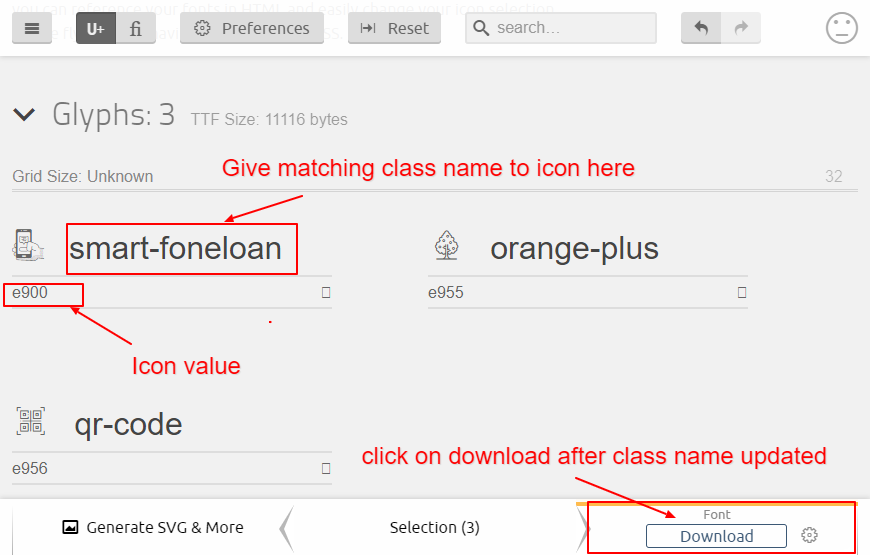
8. After download extract files on your computer go to the fonts folder select all .eot, .svg, .ttf and woff files and compress to zip.
9. start testing icon first on laxmibank sandbox site.
log in to siteground sandbox. click on websites > Collaborations > act360.net > file manager > laxmibank.act360.net > public_html > wp-content > themes > laxmi-bank > assets > fonts > laxmi-font-icons
upload icon.zip file on laxmi-font-icons and extract there.
now go back to assets folder and go to CSS folder and edit custom.css files
Add following code below on font added part.
ul.primary-menu li.laxmi-font-icons.icon-class-name span:before { content: “icon-value”; }(take icon value form icomoon and paste on content value.)
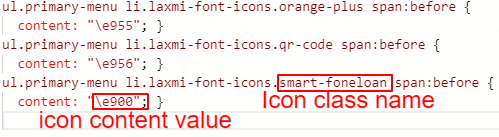
10. Save file
login to sandbox site http://laxmibank.act360.net/wp-admin/ . get credentials form Reference sheet
from sidebar go to menus and from Select a menu to edit dropdown select Top nav
select page and click on Add to Menu button.
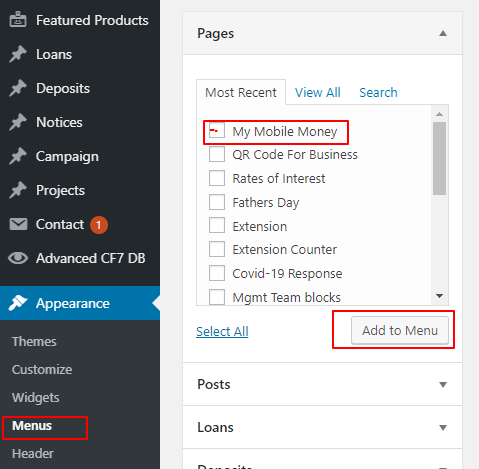
the recently added page will be shown at the last of the menus. drag and drop menu to a specific place.
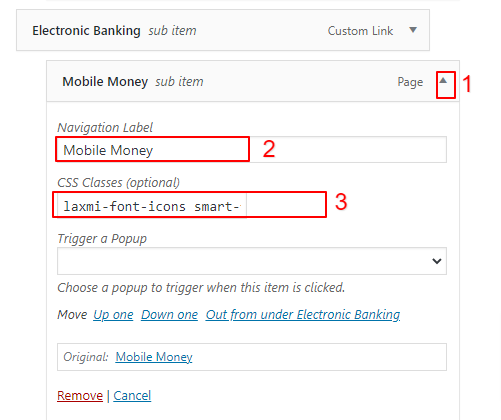
- click arrow to edit menu
- this text will be shown on menu below icon
- add classes of menu icon.
go to menu and check the menu if icon are visible properly and repeating or not
After complete testing on sandbox thing to be done on Live Site are:-
- Ask for any desk and SSH access to the Laxmi bank IT team.
- Make all files and codes ready to add on live sites
- file path: cd /home/www/laxmi-bank-website/public_html/wp-content/themes/laxmi-bank/assets/fonts/
- to add icon zip file go to laxmi-font-icons folder
- make zip files of old icons and keep backup
- upload new icon.zip file under laxmi-font-icons cmd wget file-url
- unzip file
- Repeat all step done on the Sandbox site after adding an icon files